I recently acquired an Apple TV. No, it wasn't a Christmas gift, it was a result of winning a $50 Apple store gift card. I had originally thought it was an iTunes gift card, but apparently, they're not the same thing and can't be used interchangeably. Since I had been thinking about getting an Apple TV for over a year now, I figured this was the best opportunity. I figured now that I have an XBOX, adding an Apple TV would eliminate the need of having a PC connected to my TV. Up 'til now, I've been using a PC connected to the TV for Windows Media Center (through which I get TV DVR functionality). That also afforded me a couple extra features: Hulu Desktop, Netflix (through WMC), streaming from the iTunes library on my office PC, and any movies I'd ripped to my PC. By adding an Apple TV to the mix, Netflix, iTunes streaming, and movies could be eliminated. By using the XBOX as a media center extender, the only thing that I really needed the PC for was Hulu desktop. Look for my next post to see how I fixed that problem.
So, at any rate, I didn't need the PC connected to the TV anymore, which was a relief. I had been worried about overheating the PC (when the cabinet was closed) and since I had moved my main router to the same UPS as that PC, the UPS had complained of overload. As a result, I shut down the PC and decided to use only the Apple TV and the XBOX for my entertainment needs.
All of that verbosity was to explain why I went through the process of learning how to rip DVDs to iTunes. I already have a fairly extensive library of music, audiobooks, podcasts, ebooks, and apps in my iTunes on my office PC. I decided that I would try to rip my DVD collection to iTunes so that I could just stream them from my office PC to my Apple TV. This would also make it possible to take some movies/TV shows with me on my iPhone/iPad.
So, now, how to do it:
The first thing you have to do is understand the legality of this process. This can only be done with DVDs you currently own. You cannot do this with rental DVDs since the rental agreement does not include a fair use clause. However, if you own the DVD, encoding it to a different format is the same as burning music you have bought from iTunes to a CD. It all falls under the classification of 'fair use'.
The next thing you need to do is get prepared by installing two pieces of software: Handbrake and DVD Decrypter. UPDATE: I've started using MakeMKV Beta instead of DVD Decrypter. It also supports ripping Blu Ray disks as well as DVDs. See here for more information and another guide specifically tailored to Blu Ray disks. You should probably be able to do this all using just Handbrake, but I've found that ripping the DVD to your hard drive allows for more efficient encoding using a queue.
Once you've got those two installed, open DVD Decrypter. You'll need to make a couple option changes in order to make this quicker and easier. First you need to have a folder on your hard drive where you'll store the raw DVD files. I use C:\RIP\. On the General tab, set this as the default destination folder and set the folder option to 'Semi Automatic'. This should allow DVD decrypter to automatically place each new DVD's files into their own folders. Because I've been going through my entire DVD collection encoding movies off and on for a few weeks, I also liked to tell DVD Decrypter to eject the DVD when finished. On the Device tab, check the box that says 'Eject Tray after...Read'. I also turn off the success noise. On the Sounds tab, uncheck the success sound.
Now pop in a DVD and click the big button in the bottom left corner of DVD Decrypter. That should get things going. You can now sit back for 15-20 minutes while the files are being ripped to your hard drive in raw format.
Once that is done, open Handbrake. You need to tell Handbrake to automatically output the files to the automatic input folder for iTunes. This makes it so that when encoding is finished, iTunes will automatically import the file. Open up Tools>>Options and on the General tab check the 'Automatically name output files' checkbox and set the default path to "C:\Users\YourUserName\Music\Automatically Add to iTunes". This may be slightly different on your system, but you should be able to find it. Also, change the Format box to only read {source}. You also might find it helpful to enable the 'Remove Underscores from Name' and 'Change case to Title Case' options.
Back in the main Handbrake window, click the Source drop down and select "Folder". Browse to the folder where DVD Decrypter output the raw DVD files. Handbrake will scan through the files and should select the longest title. (FYI, in DVD nomenclature, a title is essentially a single video on the DVD. You'll find that DVDs will usually contain one title for the main feature, one for each of the special features, and usually a couple small ones used as transition videos in the DVD menu.)
You'll only want to encode the main title (unless the DVD is a TV show in which case you'll want to use something like VLC media player to play the raw DVD files and determine which titles to encode). Since I'd like the best quality video, I choose the 'High Profile' in Handbrake. This sets all the settings up for the best possible quality. It also results in a large file, so if you're low on hard drive space, this might not be an option. I set this profile as the default so I don't have to pick it every time, and I also check the 'Large file size' option. Check that the name of the output file is how you want it, then click the 'Add to Queue' button.
At this point, you can pop in the next DVD and repeat the process for the next movie. I usually queue up 10-15 movies a day and let the encode run at night. Encoding is a CPU intensive process and will usually max out your processor making using your computer for other stuff fairly slow. Run it at night when the encode is the only thing going on.
Showing posts with label Reviews. Show all posts
Showing posts with label Reviews. Show all posts
Tuesday, August 13, 2013


Thursday, July 25, 2013
Google's new Chromecast dongle sells out on Play Store
UPDATE: Several reviews have come out about the Chromecast. Since I haven't dedicated the $35 to purchasing one myself, I'll defer to David Pogue.
Chromecast: is it a game changer? The public is eating it up. It's definitely a game changer. But to understand how it's going to affect things, you have to think about how Apple has been going about the same thing. For years now, Apple has had a 'pet project' called AppleTV. It has never been on the front line of Apple's advertising. There have even been several analysts over the years that have predicted the doom of AppleTV. Apple has persisted though without really highlighting AppleTV. AirPlay was available through the iOS devices, but was mainly used for streaming music. It was a cool feature but not a wave maker.
When the iPhone 5 and iPad 3 came out, they both had AirPlay, which meant that anyone who already had an AppleTV could mirror their screen to their big screen TV. This was a significant event and clearly showed Apple's desire to get into the living room. They've since released newer updated hardware and software for the little device. You can watch Hulu, Netflix, HBO, and a bunch of other content, as long as your have an account. Recently, an iOS game developer released a game that really doesn't work without mirroring. It's a tennis game much like the game that comes with the Wii. The difference is that you play with your phone as the controller using its internal accelerometers and gyroscopes to detect your motion. The video is displayed on your phone, but that doesn't really work when you're swinging your phone around like a tennis racket. However, if you mirror your phone to your AppleTV, you essentially get the same game that came with the first generation Wii. This game opens the door for other games that can be built in the same way. All the work is being done on the phone/controller in your hand, while the video is mirrored up to the big screen. The next advance I expect to see from Airplay is the ability to mirror multiple devices to the same AppleTV. Putting two people's phones' screens on a single TV gives multiplayer games a chance (imagine Mario cart but using your phone as the steering wheel).
Then Google released Chromecast. It's 1/3 the cost of the AppleTV and seems to work across different platforms. If you only look at the Chrome browser mirroring capabilities, this is huge. All the things that can be done in a Chrome browser can now be done on a big screen TV while not requiring any extra remote controls much in the same was as Airplay does for Apple phones' screens. While Chromecast appears to compete directly with AppleTV given all the current features, there's more to it than that. AppleTV and Chromecast are on the same trajectory. While Google was late to the phone game joining in only after Apple already had a tight grip on the market, they came to the table much sooner with Chromecast.
The other major factor here is that Airplay for Apple iOS devices only works with mobile devices. Chromecast promises to work not only using any mobile device but also PC computers with the Chrome browser installed. This means that all the content that people currently consume using their PC can now be consumed on their TV. This may not seem big, but given the cheap entry point, Chromecast could easily be used as a secondary monitor for every device in the house.
On top of that, since Chromecast can mirror anything from the Chrome browser, much content that has had a hard time breaking into the living room now has a direct link. For example, Hulu has two services, free and paid (Hulu Plus). The paid service doesn't have much content that the free service doesn't. There's a little, but it's not really what subscribers are paying for. Hulu Plus subscribers have the ability to stream Hulu content on just about any device they can get their hands on. Hulu free users can only get content through their browser (but not a browser on a mobile device). With Chromecast, users can easily use the free Hulu service but still view it on their TV without hooking up a PC. This means that Hulu will need to reevaluate what users are really paying for. At $8 a month, a one time investment of $35 for Chromecast not only will pay for itself in 5 months, but will get me pretty much the same content with little extra hassle.
Yes, Chromecast is a game changer. At $35, it's cheap enough to give it a chance even if it doesn't eventually work out. It's not like the $99 investment in an AppleTV.
Chromecast: is it a game changer? The public is eating it up. It's definitely a game changer. But to understand how it's going to affect things, you have to think about how Apple has been going about the same thing. For years now, Apple has had a 'pet project' called AppleTV. It has never been on the front line of Apple's advertising. There have even been several analysts over the years that have predicted the doom of AppleTV. Apple has persisted though without really highlighting AppleTV. AirPlay was available through the iOS devices, but was mainly used for streaming music. It was a cool feature but not a wave maker.
When the iPhone 5 and iPad 3 came out, they both had AirPlay, which meant that anyone who already had an AppleTV could mirror their screen to their big screen TV. This was a significant event and clearly showed Apple's desire to get into the living room. They've since released newer updated hardware and software for the little device. You can watch Hulu, Netflix, HBO, and a bunch of other content, as long as your have an account. Recently, an iOS game developer released a game that really doesn't work without mirroring. It's a tennis game much like the game that comes with the Wii. The difference is that you play with your phone as the controller using its internal accelerometers and gyroscopes to detect your motion. The video is displayed on your phone, but that doesn't really work when you're swinging your phone around like a tennis racket. However, if you mirror your phone to your AppleTV, you essentially get the same game that came with the first generation Wii. This game opens the door for other games that can be built in the same way. All the work is being done on the phone/controller in your hand, while the video is mirrored up to the big screen. The next advance I expect to see from Airplay is the ability to mirror multiple devices to the same AppleTV. Putting two people's phones' screens on a single TV gives multiplayer games a chance (imagine Mario cart but using your phone as the steering wheel).
Then Google released Chromecast. It's 1/3 the cost of the AppleTV and seems to work across different platforms. If you only look at the Chrome browser mirroring capabilities, this is huge. All the things that can be done in a Chrome browser can now be done on a big screen TV while not requiring any extra remote controls much in the same was as Airplay does for Apple phones' screens. While Chromecast appears to compete directly with AppleTV given all the current features, there's more to it than that. AppleTV and Chromecast are on the same trajectory. While Google was late to the phone game joining in only after Apple already had a tight grip on the market, they came to the table much sooner with Chromecast.
The other major factor here is that Airplay for Apple iOS devices only works with mobile devices. Chromecast promises to work not only using any mobile device but also PC computers with the Chrome browser installed. This means that all the content that people currently consume using their PC can now be consumed on their TV. This may not seem big, but given the cheap entry point, Chromecast could easily be used as a secondary monitor for every device in the house.
On top of that, since Chromecast can mirror anything from the Chrome browser, much content that has had a hard time breaking into the living room now has a direct link. For example, Hulu has two services, free and paid (Hulu Plus). The paid service doesn't have much content that the free service doesn't. There's a little, but it's not really what subscribers are paying for. Hulu Plus subscribers have the ability to stream Hulu content on just about any device they can get their hands on. Hulu free users can only get content through their browser (but not a browser on a mobile device). With Chromecast, users can easily use the free Hulu service but still view it on their TV without hooking up a PC. This means that Hulu will need to reevaluate what users are really paying for. At $8 a month, a one time investment of $35 for Chromecast not only will pay for itself in 5 months, but will get me pretty much the same content with little extra hassle.
Yes, Chromecast is a game changer. At $35, it's cheap enough to give it a chance even if it doesn't eventually work out. It's not like the $99 investment in an AppleTV.
Tuesday, July 23, 2013
BTSync: A new alternative to cloud based drive services
In a previous post, I wrote about how to connect your system folders (My Documents, My Pictures, etc.) to a Google Drive/Dropbox/Skydrive account. The benefit of this is that you always have a backup available on the web. If my hard drive were to die today, I wouldn't be too bad off since all I need to do is download the Google Drive desktop app and redirect my system folders to my Google Drive folder. All my stuff would come back like it was never gone. I'd still have to install applications but that's not too bad. It's nice every once in a very long while to lose all my programs. It forces me to trim the fat or look for better versions of the apps I use (Like Paint.Net or Notepad++).
1Without paying anything
2Shared with Gmail and Google+ Hi Res Photos
3Although pretty easy
4If you have a paid subscription to Office360
5Not necessarily Gmail users, but anyone with a Google account
So, let me highlight some of the reasons that BTSync intrigues me. First of all, there is no limit to the amount of content that can be synchronized. This is mainly due to the fact that your sync'd files are not stored on some limited corporate server somewhere, they're stored only on the systems where your files are synchronized. This is a double edged knife, however. While Cloud based drives can be used for backup, BTSync doesn't back your content up to the internet. If you add a folder to BTSync only on one computer, the files aren't copied anywhere. So, unlimited size but no storage on any corporate servers. That may be two advantages in some peoples' books.
Unlike most of the corporate cloud based drives, BTSync is only about the file transfers. As such, there are no online editors for your files. However, since there is no web access to your files (because they're not on any corporate server) you'll only be accessing your files from your desktop. You can install any office productivity suite locally (or even use google docs in a roundabout way).
Sharing is another feature that is different from other offerings. While other offerings essentially require you to have an account in order to have RW access to a shared folder, BTSync will allow anyone with the app to access/sync your folder as long as they have the secret, a special, very long, very complicated password. If you give another person the secret to your folder, they can sync your folder with a folder on their computer. Any changes either of you make will be reflected in the other's sync'd folder.
You can however, give out two other types of secrets: a read only secret and a one time secret. The RO secret allows the person to whom you give it to sync your folder to a folder on their system, but they won't be able to make changes to your folder. This is a good way of distributing files to friends. For example, you could setup your pictures folder and hand out the RO secret to family members. They would then get copies of any pictures you put in your pictures folder (think of doing this with your iCloud Photo Stream).
Have you started thinking about the possibilities yet?
Another thing I did right away with BTSync was to synchronize my Dosbox working directory across all my PCs. I play retro DOS games every once in a while. By synchronizing the working directory for Dosbox (a DOS emulator) I can access the games, save files, and anything else on any of my computers. This allows me to play a game on my desktop then save the game, exit Dosbox, go to the living room and launch Dosbox and pick up the saved game right where I left off.
I'm hosting a LAN party this weekend. I setup a folder where I intend to put all the installers and files needed (including my dosbox folder). I've added it to BTSync and will hand out the RO key via Facebook and email to everybody coming to the party. That way they can install the games ahead of time to make sure they work.
Another idea I had was to use BTSync to replace NQSync (which I had originally intended to write using the bittorrent protocol anyway).
One more feature then I'm done. I promise.
In my previous post, I talked about changing the default location of system folders. This is necessary since most cloud drives require the sync'd files to be in a particular folder. So I have to move my system folders to that sync'd folder in order to get them to sync. With BTSync, I don't have to move the folders. I can setup each folder in BTSync without moving it. This means that I don't have to move anything, I don't have to change Windows configurations, or anything.
I haven't done it yet, but I will probably only run Google Drive on one of my PCs. The rest will use BTSync to stay in sync.
So, that's my initial review of BTSync. So far, I don't see it replacing Google Drive, but I do see myself using it to distribute pictures and home videos to my family, keeping my games in sync across all my PCs, possibly synchronizing recorded TV shows, making backups, and using it at work.
However, I've always been a fan of the Bittorrent protocol. It's a peer to peer file sharing program that most people use to download illegal movies or music. While those days are behind me, I've tried to help people understand that P2P is no the same as illegal. There are perfectly legal uses of P2P protocols like Bittorrent (see this, this, and this).
And so my becoming a fan of Google Drive (and also Google Apps that allow me to work on a spreadsheet or document with many other people simultaneously) only makes sense. If you're happy with that, or you only have one computer and no one you would ever want to share anything with, stop reading this blog post now (check out my most popular post instead).
Last week I stumbled upon BTSync (it has since been spun off and renamed to Resilio Sync). This is a little app created by the same people that designed the Bittorrent protocol. While there are several uses of BTSync, the main use is to compare it to the features and functionality of products like Google Drive. Here is my comparison matrix:
| Feature | Google Drive | SkyDrive | Dropbox | BTSync |
|---|---|---|---|---|
| Size Limit1 | 15GB2 | 7GB | 18GB | ∞ |
| Shareable Content | Must be in Google Drive folder | Must be in SkyDrive folder | Must be in Dropbox folder3 | Any number of existing folders |
| Your files stored on a corporate server | Yes | Yes | Yes | No |
| Online File Editors | Yes | Yes4 | Viewer: Yes Editor: No | No |
| Web Access to Files | Yes | Yes | Yes | No |
| Sharing | Only with Google users5 | Only with MSN Passport users | Only with Dropbox users | Anyone with the app |
2Shared with Gmail and Google+ Hi Res Photos
3Although pretty easy
4If you have a paid subscription to Office360
5Not necessarily Gmail users, but anyone with a Google account
So, let me highlight some of the reasons that BTSync intrigues me. First of all, there is no limit to the amount of content that can be synchronized. This is mainly due to the fact that your sync'd files are not stored on some limited corporate server somewhere, they're stored only on the systems where your files are synchronized. This is a double edged knife, however. While Cloud based drives can be used for backup, BTSync doesn't back your content up to the internet. If you add a folder to BTSync only on one computer, the files aren't copied anywhere. So, unlimited size but no storage on any corporate servers. That may be two advantages in some peoples' books.
Unlike most of the corporate cloud based drives, BTSync is only about the file transfers. As such, there are no online editors for your files. However, since there is no web access to your files (because they're not on any corporate server) you'll only be accessing your files from your desktop. You can install any office productivity suite locally (or even use google docs in a roundabout way).
Sharing is another feature that is different from other offerings. While other offerings essentially require you to have an account in order to have RW access to a shared folder, BTSync will allow anyone with the app to access/sync your folder as long as they have the secret, a special, very long, very complicated password. If you give another person the secret to your folder, they can sync your folder with a folder on their computer. Any changes either of you make will be reflected in the other's sync'd folder.
You can however, give out two other types of secrets: a read only secret and a one time secret. The RO secret allows the person to whom you give it to sync your folder to a folder on their system, but they won't be able to make changes to your folder. This is a good way of distributing files to friends. For example, you could setup your pictures folder and hand out the RO secret to family members. They would then get copies of any pictures you put in your pictures folder (think of doing this with your iCloud Photo Stream).
Have you started thinking about the possibilities yet?
Another thing I did right away with BTSync was to synchronize my Dosbox working directory across all my PCs. I play retro DOS games every once in a while. By synchronizing the working directory for Dosbox (a DOS emulator) I can access the games, save files, and anything else on any of my computers. This allows me to play a game on my desktop then save the game, exit Dosbox, go to the living room and launch Dosbox and pick up the saved game right where I left off.
I'm hosting a LAN party this weekend. I setup a folder where I intend to put all the installers and files needed (including my dosbox folder). I've added it to BTSync and will hand out the RO key via Facebook and email to everybody coming to the party. That way they can install the games ahead of time to make sure they work.
Another idea I had was to use BTSync to replace NQSync (which I had originally intended to write using the bittorrent protocol anyway).
One more feature then I'm done. I promise.
In my previous post, I talked about changing the default location of system folders. This is necessary since most cloud drives require the sync'd files to be in a particular folder. So I have to move my system folders to that sync'd folder in order to get them to sync. With BTSync, I don't have to move the folders. I can setup each folder in BTSync without moving it. This means that I don't have to move anything, I don't have to change Windows configurations, or anything.
I haven't done it yet, but I will probably only run Google Drive on one of my PCs. The rest will use BTSync to stay in sync.
So, that's my initial review of BTSync. So far, I don't see it replacing Google Drive, but I do see myself using it to distribute pictures and home videos to my family, keeping my games in sync across all my PCs, possibly synchronizing recorded TV shows, making backups, and using it at work.
Thursday, April 4, 2013
Raspberry Pi
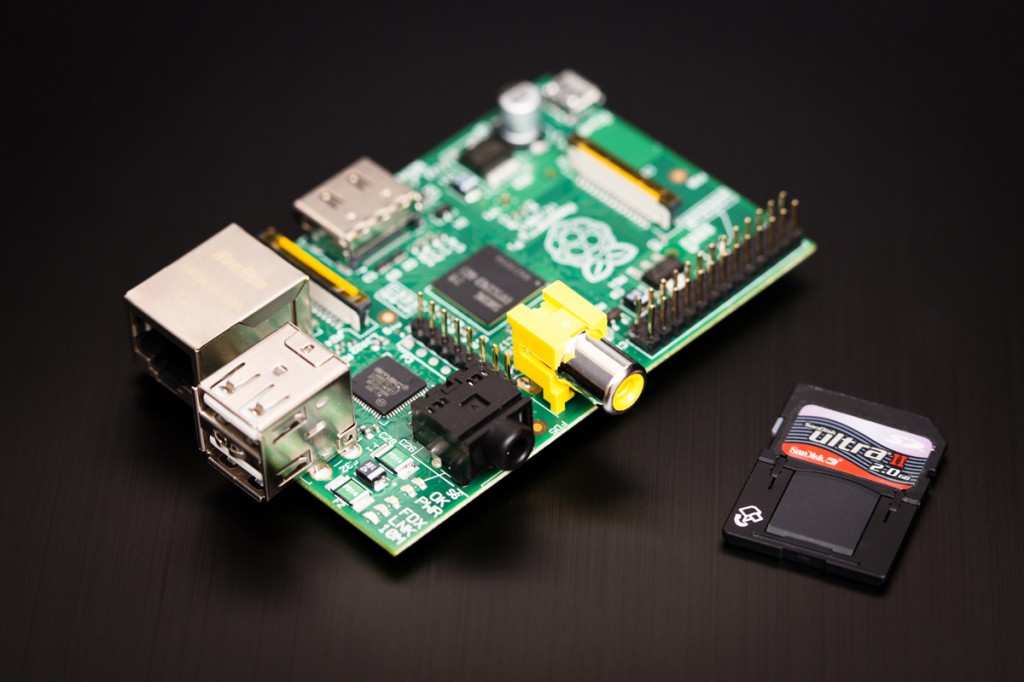
Today I joined the latest craze sweeping the Internet. No, not Vadering (although I should look into how that could be done with the boys). I bought two brand new computers today. It cost me a total of $70 + shipping. Well, actually, I didn't buy the whole computer, I just bought the motherboard, which has the processor, RAM, video card (with HDMI and analog RCA out), audio card, SD card reader, onboard NIC and 2x USB ports. It's all built into a special little PCB (printed circuit board) that takes advantage of SOC (system on a chip: basically the main guts of a computer all on one chip, similar to most tablets and phones).
 It's called Raspberry Pi and is produced by a non-profit organization that designed them to be used in developing countries for education. Since it's a charity, they designed the board to be extremely cheap and can sell it for $35! They're currently being distributed through three reseller partners officially. Each reseller also sells in bulk to other companies so you can find them elsewhere. The main drive for resellers is the accessories that go a long with it (more about this later). RS (only in Europe), Allied Electronics, and Element14 (through Newark) are the official resellers. For more information, check out the video below or read this article.
I ordered two of them today because for a long time both model A and model B were out of stock everywhere. My dad reminded me last night that they were back in stock so I got one for him and one for me this morning. Here's a good video to introduce what's really behind it.
It should be here within a few days. All that actually comes in the box is the board, no case, no cables, no nothing. So, I'll go dumpster diving into my crates of extra parts in the garage for a 700mA USB power supply (I wonder if the dual USB plug for my portable hard drive would allow this to be powered from my USB hub...), HDMI to VGA converter so I can plug it into my desk monitor, a USB keyboard and a USB mouse (maybe I'll use my Bluetooth dongle and the Logitech diNovo Mini keyboard...), and an SD card. I think I'll start by running Rasbian Wheezy, just to see how well it performs normal desktop tasks. After that I'm going to use it as a test bed for XBMC with RaspBMC to potentially replace my current Windows Media Center dependent installation.
Anyway, I'll try to post my progress as things go along. Eventually, I'll be looking into putting this thing into a case and see what happens. Here are some of the cases I'm looking at


I might even consider making a competitor to the iMac:
 versus
I ordered two of them today because for a long time both model A and model B were out of stock everywhere. My dad reminded me last night that they were back in stock so I got one for him and one for me this morning. Here's a good video to introduce what's really behind it.
It should be here within a few days. All that actually comes in the box is the board, no case, no cables, no nothing. So, I'll go dumpster diving into my crates of extra parts in the garage for a 700mA USB power supply (I wonder if the dual USB plug for my portable hard drive would allow this to be powered from my USB hub...), HDMI to VGA converter so I can plug it into my desk monitor, a USB keyboard and a USB mouse (maybe I'll use my Bluetooth dongle and the Logitech diNovo Mini keyboard...), and an SD card. I think I'll start by running Rasbian Wheezy, just to see how well it performs normal desktop tasks. After that I'm going to use it as a test bed for XBMC with RaspBMC to potentially replace my current Windows Media Center dependent installation.
Anyway, I'll try to post my progress as things go along. Eventually, I'll be looking into putting this thing into a case and see what happens. Here are some of the cases I'm looking at
I might even consider making a competitor to the iMac:
versus Thursday, January 3, 2013
iOS App Review: Remote
 Apple
AppleSummary - This app gets a ton of usage at our house. In the last few years, Apple has been improving on their AirPlay feature and Remote reaps the benefits. This app on my iPhone can connect to any of the iTunes libraries and AppleTVs on my network and control them. We use this mainly as an additional remote control for our AppleTV. I can swipe and tap to navigate around the AppleTV UI as well as browse through shared content from my desktop without interrupting the current content on the AppleTV. When I find a movie, TV show, or music playlist I want to play, the Remote app starts it streaming to the AppleTV. I can also use this to control music playing on my desktop. So, if I walk into the other room, I can easily stop the music from playing without going back to my office. We also use it from time to time to control the iTunes music playing in the nursery (since that PC is a headless PC; e.g. no monitor attached).
Pros - This one is definitely easy to setup. Just enable the home sharing option by signing in with your Apple ID and you get full control of all the iTunes libraries and devices joined to the home share. Apple's recent update also added a 'stay-connected' feature that keeps me connected for a few minutes after using the remote. This means faster resume time if I was just using it a few minutes ago. The app also supports AirPlay. I discovered that from the app I can start music playing in my office, then also extend it to the speakers connected to my AppleTV.
Cons - I haven't really found any downsides to the app. It's well designed and does exactly what I want it to do.


Saturday, December 15, 2012
iOS App Review: Latitude
Google Latitude - Google, Inc.Summary - This handy little app scares people who are paranoid about Google being their big brother. I look at Google in this way: "If Google wanted any of my information, they'd get it. So why go to the effort of hiding it?" Latitude tracks my current GPS position and uploads it regularly to the Google cloud. Within the app, I have a few defined friends that also use Latitude. I choose to share my current location with them. This means I can always check where my wife, my Dad, my brother, and my best friend are. Hopefully the service won't be turned off without the functionality being moved into Google+.
Pros - Easy to setup, easy to add friends, quick to launch, and I always know if my parents are on their way over for a surprise visit to see the grandkids. I can also set an option (that's disabled by default) to keep a log of my locations (instead of just my current location). This could be useful for parents trying to keep an eye on their kids or for catching the crooks that steal your phone.
Cons - Google knows where you've been. Not many people use it. It's not yet integrated with Google+ (maybe someday).


Friday, December 14, 2012
iOS App Review: Grabatron
Grabatron - Future Games of LondonSummary - This game has kept itself on my first page of apps for several months now. It's a simple game where you fly a UFO by tilting the iPhone. Tap the screen and a giant claw descends. The goal is to grab stuff with the claw and destroy it. Simple gamification techniques make the game easy to put down and resume later while still feeling like I've made progress. The whole thing has a fun 1950s Aliens Attack! feel to the graphics and theme.
Pros
- Easy to learn the mechanics of the game
- In app upgrades can be bought with real money or crystals earned in the game
- Crystals can also be earned by watching neatly tucked away ads
- The object of the game is destruction!
Cons
- Loads slowly on my iPhone4. Once loaded, performance is fine
- Music and sound effects were annoying at first. Easy to disable though


Thursday, December 13, 2012
iOS App Review: Tower Madness
TowerMadness - Limbic SoftwareSummary - One of the most fun games I've played. It's not that much different than other tower defense games, but consistent new maps and tower upgrades keep me coming back and playing the same parts of the game over and over.
Pros
- New maps released somehow right after I get tired of the existing maps
- New weapon upgrades released somehow right after I get tired of the existing weapon upgrades
- Good graphics
- Easy to learn
- Endless mode allows for longer play with more money and more aliens to kill
- Pinch/spread zoom in/out seamlessly integrates with 3D environment
- 1x/2x/4x play modes so you can play faster
Cons
- No 'upgrade all the way' or 'upgrade as much as I can afford' option (instead you have to go through each upgrade manually
- No option in endless mode to send 10/50/100 waves at once (instead you have to tap the single button 10/50/100 times)
- More maps can be bought as in app purchases - that's how they make money
- More weapons can be bought as in app purchases
- 8x play mode would be nice
- My iPhone 4 slows down when more than 40 waves are present on the playing field and in 4x mode. Doesn't seem to affect score
- One tower has an upgrade that turns it into a Tesla Coil. While it's a great weapon, it doesn't work against airborne enemies. Since it's all science fiction anyway, I would prefer that this upgrade gave the tower the ability to engage airborne enemies, much like the famed Tesla Death Ray


Monday, December 10, 2012
iOS App Review: Flashlight by Rik
I've been asked before what apps I have installed on my iPhone. I figured I could detail which ones I use and why through my blog. This will give me room to put my reasons for/against a certain app. I'll try to include my overview, pros, and cons. Here goes nothing...
Flashlight by Rik - Henri Asseily
Summary - This turns the iPhone's camera's flash into a flashlight. Instead of flashing on when taking a picture, this app turns on the flash continuously.
Pros - Tons of options including an option to darken the screen while in use. When in darkened mode it shows your battery usage so you can keep an eye on things. It includes standard flashlight functions like auto SOS message through Morse code, manual Morse code, and strobe (more just for fun). There's also an option to control the intensity, so it can be turned down to make your battery last longer. It's also free.
Cons - Like any other flashlight app, it will consume battery while it's on. You can't use other apps and keep the flashlight on. This is not unique to this flashlight app and has to do more with iOS' so called 'multitasking'.


Flashlight by Rik - Henri AsseilySummary - This turns the iPhone's camera's flash into a flashlight. Instead of flashing on when taking a picture, this app turns on the flash continuously.
Pros - Tons of options including an option to darken the screen while in use. When in darkened mode it shows your battery usage so you can keep an eye on things. It includes standard flashlight functions like auto SOS message through Morse code, manual Morse code, and strobe (more just for fun). There's also an option to control the intensity, so it can be turned down to make your battery last longer. It's also free.
Cons - Like any other flashlight app, it will consume battery while it's on. You can't use other apps and keep the flashlight on. This is not unique to this flashlight app and has to do more with iOS' so called 'multitasking'.


Tuesday, October 9, 2012
Windows 8 Highlights
I've been watching (mostly passively) the development and announcements around Windows 8. Microsoft's new flagship desktop operating system will be unleashed sometime later this month. I say unleashed, but I really should say released again since there was a developer's preview version of the operating system, a consumer preview version, and a release preview version that were released previously. In my case, the multiple previews actually cemented a prejudice I have against MS' radical new ideas in their first iteration. I actually downloaded and installed the developer preview and it told me everything I needed to know about Windows 8: it's the next Windows ME, or Windows Vista and I won't be rushing to it any time soon; Microsoft has tried to do something radically different, but they never get it right on the first try. It's always the iteration afterward that hits pay-dirt (right after ME was XP and right after Vista was 7).
Either way, Michael Mace put together a great introductory video explaining what changes with this version of the operating system. Here it is.
Either way, Michael Mace put together a great introductory video explaining what changes with this version of the operating system. Here it is.
Thursday, September 20, 2012
IM 2.0 on Linux vs. Windows
With the release of IM 2.0, I've been testing the installation of the various components on CentOS because my lab's investor (my wife) doesn't see the need to purchase a RedHat license. All the better anyway since others might want to know if CentOS is an option for installation to save on adoption costs. Frankly, I'm not sure why CA decided to go with RHEL.
While it is probably the most popular Linux server operating system, all (I repeat, ALL) of the previous NetQoS software ran on Windows. I'm not counting MTP since it's sold as an appliance not software. The target audience for the original NetQoS products was the network engineer. It has since bloomed to include application owners and server administrators. However, if you look at the role of the person who normally administers and champions the NetQoS products, it's still a network engineer.
It is my opinion that network engineers are most familiar with two operating systems: Cisco IOS and Windows. There will be that case where the network engineer used to be on the server team but is now working on the network side. While this obviously happens, I think there are just as many server-turned-network engineers who come from Linux/mixed (Windows & Linux, come on even Linux only environments have Exchange) environments as come from Windows only environments. So, my conclusion is that most network engineers will be most familiar with Cisco IOS and Windows (both from server OS and desktop OS experience). IM 2.0 should have been released on Windows.
There is another possible reason to use Linux over Windows: speed. I agree with this argument. Even with CentOS, I can turn off the GUI and save the resources that would otherwise be dedicated to display a locked screen 99.999% of the time. However, the minimum RAM requirement for IM 2.0 is 4GB. What!? I thought Linux was a better performer and could get away with not having as much RAM. Well, it turns out that even in a lab environment when monitoring a very small infrastructure, 3GB isn't always enough. The fact that I installed DA/DR on a box with only 1GB was pointed to as a possible reason why I was seeing problems on my installation. Wait guys, if i have to dedicate a ton of resources, why don't we just run it on Windows?
Wasn't IM 2.0 supposed to be developed on Java? If that's the case, why does the OS even matter? Shouldn't it be a fairly trivial matter to compile installers for all of the major operating systems?
I'm not a developer, so you really shouldn't be reading any of this without your tough over in your cheek. But still.
Really?
I have to learn Linux?
Really?
I have to purchase RHEL?
Really?
I have to dedicate at least 4GB of RAM in a lab environment?
Really?

While it is probably the most popular Linux server operating system, all (I repeat, ALL) of the previous NetQoS software ran on Windows. I'm not counting MTP since it's sold as an appliance not software. The target audience for the original NetQoS products was the network engineer. It has since bloomed to include application owners and server administrators. However, if you look at the role of the person who normally administers and champions the NetQoS products, it's still a network engineer.
It is my opinion that network engineers are most familiar with two operating systems: Cisco IOS and Windows. There will be that case where the network engineer used to be on the server team but is now working on the network side. While this obviously happens, I think there are just as many server-turned-network engineers who come from Linux/mixed (Windows & Linux, come on even Linux only environments have Exchange) environments as come from Windows only environments. So, my conclusion is that most network engineers will be most familiar with Cisco IOS and Windows (both from server OS and desktop OS experience). IM 2.0 should have been released on Windows.
There is another possible reason to use Linux over Windows: speed. I agree with this argument. Even with CentOS, I can turn off the GUI and save the resources that would otherwise be dedicated to display a locked screen 99.999% of the time. However, the minimum RAM requirement for IM 2.0 is 4GB. What!? I thought Linux was a better performer and could get away with not having as much RAM. Well, it turns out that even in a lab environment when monitoring a very small infrastructure, 3GB isn't always enough. The fact that I installed DA/DR on a box with only 1GB was pointed to as a possible reason why I was seeing problems on my installation. Wait guys, if i have to dedicate a ton of resources, why don't we just run it on Windows?
Wasn't IM 2.0 supposed to be developed on Java? If that's the case, why does the OS even matter? Shouldn't it be a fairly trivial matter to compile installers for all of the major operating systems?
I'm not a developer, so you really shouldn't be reading any of this without your tough over in your cheek. But still.
Really?
I have to learn Linux?
Really?
I have to purchase RHEL?
Really?
I have to dedicate at least 4GB of RAM in a lab environment?
Really?

Monday, July 9, 2012
AT&T vs. Comcast
I've had AT&T dry loop DSL for several years. Dry loop is the term for DSL without a phone line. Anyway, it's been giving me problems lately and since I work from home, my work is affected any time I have an internet performance degradation. Not to mention, if my internet is slow, Christy can't watch Netflix while I'm working. So, I've recently decided to switch to cable internet from Comcast (Xfinity Performance). With my AT&T internet, I'm supposed to get 6Mbps download and 700Kbps upload. Since it's DSL, it's supposed to be a guaranteed rate. However, this is the speed I got today just before the Comcast guy came to setup my new internet.
 This is actually better than normal. My normal download speed is just under 3Mbps with uploads somewhere around 150Kbps. Needless to say, this is why I'm switching to Comcast. Their plan is $20 cheaper and boasts speeds up to 20Mbps. Cable internet isn't a guaranteed rate, but even if they live up to half the promise and the average rate is 10Mbps, that will be a huge improvement over my old internet connection.
Here are the results after the upgrade to Comcast internet. Needless to say, I'm happier than I was.

Here are the results after the upgrade to Comcast internet. Needless to say, I'm happier than I was.
Monday, April 30, 2012
How to use a CD/DVD on a Computer That Doesn't Have a CD/DVD Drive
A friend of mine asked me today how to use a CD on a computer that doesn't have a CD drive. Luckily, this is an easy, albeit technical, one. The overall strategy goes like this: create an ISO file of the CD, get the ISO file onto the CD-drive-less computer, open the ISO file with an emulator.
The first thing to do is download and install ISO Recorder by Alex Feinman. This will allow you to copy the CD to your computer's hard drive in the form of an ISO file. After you've installed it, put the disc in your drive and look in 'My Computer'. You should see the CD-drive icon change to the icon of the disc inserted. Right click on that drive and click "Create Image from CD/DVD".
ISO Recorder will pop up asking where you want to save the new ISO file. Pick a good place for it and hit next. Wait for it to finish and you're ready for the next step.
ISO version of discs are a very handy way of keeping backups of discs. Especially if you are worried that kids may destroy the originals. Of course, DVDs manufactured by the movie industry usually have copy protection on them, so you might not be able to do this for just any disc.
Creating an ISO file of the disc
This is where half the magic happens. An ISO file is basically a file that exists on your hard drive that contains everything about an optical disc. It's just like a Word document or an Excel workbook. Except instead of opening in Word or Excel, you have to open it in a special program (don't worry, it's as easy as double clicking the ISO file).The first thing to do is download and install ISO Recorder by Alex Feinman. This will allow you to copy the CD to your computer's hard drive in the form of an ISO file. After you've installed it, put the disc in your drive and look in 'My Computer'. You should see the CD-drive icon change to the icon of the disc inserted. Right click on that drive and click "Create Image from CD/DVD".
ISO Recorder will pop up asking where you want to save the new ISO file. Pick a good place for it and hit next. Wait for it to finish and you're ready for the next step.
Moving the ISO file to the CD-drive-less computer
This part can be accomplished via whatever method you choose. The easiest (and least technical) is to just copy the ISO to a USB flash drive. Then copy the ISO from the flash drive to the new computer. Other options are to copy via the network or via torrent (depending on the size).Opening the ISO File with an Emulator
This is the fun part. Download and install Daemon Tools Lite on the CD-drive-less computer. You may need to reboot after the installation; do that before continuing. Once that's finished, find the ISO file and double click it. You should get a message saying "Mounting Image to Virtual Drive". After your mouse stops showing the hour glass and/or the message goes away, look in your 'My Computer'. You should see a CD-drive. WHAT?! This is the virtual drive. It should have your virtual CD in it. You can now use the CD as if it were installed in a real drive. And guess what, this CD can't get scratches on it.ISO version of discs are a very handy way of keeping backups of discs. Especially if you are worried that kids may destroy the originals. Of course, DVDs manufactured by the movie industry usually have copy protection on them, so you might not be able to do this for just any disc.
Thursday, January 5, 2012
How to get Free HD TV
I hinted in my previous post that I made Hulu obsolete at our house at the time that I installed my Apple TV. I didn't perform any real magic, but I do want to explain how I did it in case anyone out there is looking to do the magic that I do.
I normally only watch Hulu for ABC shows since I don't get good reception on our TV for the ABC affiliate here in Houston. Let me explain. Before I added the Apple TV to the mix, I used an antenna mounted in my attic which fed a signal to a pair of USB HDTV tuners connected to a pc connected to my TV. I used Windows Media Center (WMC: a free piece of software included in every version of Windows Vista and Windows7) to watch and record TV. WMC has a free guide built in and since I used two tuners, I could record/watch up to two shows at one time. It was great. I could pause live TV, I could schedule my favorite shows to record, and since it was a full blown PC, I could watch Netflix and use Hulu Desktop for online content. I could even watch general conference via the internet browser.
All of this was great, except that the position of the antenna didn't give me great reception on ABC and I only got fair reception on some channels, missing out on the secondary channels altogether in some cases. So, at the same time that I installed the Apple TV, I chose to get one other piece of hardware to alleviate the need of having a PC connected to the TV. After all, I had to have the PC turned on all the time in order to ensure that all my shows would get recorded. That combined with a big external hard drive that I had hooked up for TV show storage added to the power and heat inside my little entertainment cabinet. I knew that I could use my XBOX as a media center extender, so I knew I could shift the load from the TV PC to my office PC. The only problem was that I would have to run coax cable from the antenna down to my office and then plug in the two USB HDTV tuners. I didn't want to have to run more cable through the wall.
The solution was to get a SiliconDust HD HomeRun Dual. I found it used on the internet (thank you Amazon) for around $75. The advantage of this device is that it combines the two tuners into one device and it uses Ethernet as opposed to USB for connectivity to the Windows Media Center PC. This means that instead of running a coax cable from the antenna through the walls to my office PC, I could just run an Ethernet cable from the antenna/HomeRun Dual to my home router. Since this is much easier due to the placement of my router, this became the optimum solution.
So, I installed the HomeRun Dual in the attic and connected it to the antenna. I ran an Ethernet cable from there down to my punch-down and from there patched it into my router. I installed the little utility on my office PC and fired up WMC. WMC found the tuner on the network without any real work and before I knew it, I was watching TV on my office PC. As it turns out, any other PC on my network can use one or both of the tuners as long as another PC isn't using them. They are a pool of tuners available to everyone on the network. Awesome!
The only problems was that the reception had changed. I wasn't getting all the channels I was getting before or I was getting them, but not well enough to watch. This wasn't unexpected since any time you change wiring in regards to an antenna, things can change. I decided I needed to get my antenna higher so it would get better reception for those channels. I mounted the antenna on the chimney and checked things out. Lo and behold, I got wonderful reception on all the channels I used to get and I also now get very good reception on ABC and the affiliates. I even now get 3 sub-channels to PBS!
Now that I get ABC, I don't really need Hulu. If there is something I want to watch that I don't get through Netflix, over the air HDTV, or isn't in my collection of DVDs, I can always check Hulu. If all else fails, Amazon and gohastings.com are always there to help with a used DVD.
I normally only watch Hulu for ABC shows since I don't get good reception on our TV for the ABC affiliate here in Houston. Let me explain. Before I added the Apple TV to the mix, I used an antenna mounted in my attic which fed a signal to a pair of USB HDTV tuners connected to a pc connected to my TV. I used Windows Media Center (WMC: a free piece of software included in every version of Windows Vista and Windows7) to watch and record TV. WMC has a free guide built in and since I used two tuners, I could record/watch up to two shows at one time. It was great. I could pause live TV, I could schedule my favorite shows to record, and since it was a full blown PC, I could watch Netflix and use Hulu Desktop for online content. I could even watch general conference via the internet browser.
All of this was great, except that the position of the antenna didn't give me great reception on ABC and I only got fair reception on some channels, missing out on the secondary channels altogether in some cases. So, at the same time that I installed the Apple TV, I chose to get one other piece of hardware to alleviate the need of having a PC connected to the TV. After all, I had to have the PC turned on all the time in order to ensure that all my shows would get recorded. That combined with a big external hard drive that I had hooked up for TV show storage added to the power and heat inside my little entertainment cabinet. I knew that I could use my XBOX as a media center extender, so I knew I could shift the load from the TV PC to my office PC. The only problem was that I would have to run coax cable from the antenna down to my office and then plug in the two USB HDTV tuners. I didn't want to have to run more cable through the wall.
The solution was to get a SiliconDust HD HomeRun Dual. I found it used on the internet (thank you Amazon) for around $75. The advantage of this device is that it combines the two tuners into one device and it uses Ethernet as opposed to USB for connectivity to the Windows Media Center PC. This means that instead of running a coax cable from the antenna through the walls to my office PC, I could just run an Ethernet cable from the antenna/HomeRun Dual to my home router. Since this is much easier due to the placement of my router, this became the optimum solution.
So, I installed the HomeRun Dual in the attic and connected it to the antenna. I ran an Ethernet cable from there down to my punch-down and from there patched it into my router. I installed the little utility on my office PC and fired up WMC. WMC found the tuner on the network without any real work and before I knew it, I was watching TV on my office PC. As it turns out, any other PC on my network can use one or both of the tuners as long as another PC isn't using them. They are a pool of tuners available to everyone on the network. Awesome!
The only problems was that the reception had changed. I wasn't getting all the channels I was getting before or I was getting them, but not well enough to watch. This wasn't unexpected since any time you change wiring in regards to an antenna, things can change. I decided I needed to get my antenna higher so it would get better reception for those channels. I mounted the antenna on the chimney and checked things out. Lo and behold, I got wonderful reception on all the channels I used to get and I also now get very good reception on ABC and the affiliates. I even now get 3 sub-channels to PBS!
Now that I get ABC, I don't really need Hulu. If there is something I want to watch that I don't get through Netflix, over the air HDTV, or isn't in my collection of DVDs, I can always check Hulu. If all else fails, Amazon and gohastings.com are always there to help with a used DVD.
Thursday, October 20, 2011
Techno Nursery
We're getting ready for 2 pair of little feet destined to arrive around February. As such, I've been preparing the nursery. I finished the moulding (still need to touch up a couple places) and got some bookshelves in. As usual, I wasn't satisfied. I needed to tech-ify the room. So, I had a couple ideas:
Idea #1: Remote Lullaby
Over the last few months, I started collecting lullaby music into a playlist (thanks, Jewel for the inspiration and the starting tracks). I even burned a CD so I could pop it into the little CD player/radio we put in there. However, I knew that wouldn't do. So, I dusted off the old Dell Hybrid pc and installed it behind some books on one of the bookshelves. I dropped a network jack into that room and set it up as a headless pc. The idea is to connect some small speakers and use the remote app on my iPhone to control the streaming of the lullaby playlist from my desktop to the nursery. The idea being that I could roll over in bed and start up a lullaby without even getting out of bed. So far so good. Just gotta pick the speakers that are going to be connected to the pc.
Idea #2: Baby Monitor
Luckily for me, someone had already come up with a good way of doing this. It only took about 20 minutes of searching on the web before I found JumiTech. They have built an agent and an iOS app that work together to stream video from a webcam to an iOS device. So, I installed their agent, plugged in a very, very old webcam from the garage, spent 20 minutes getting a driver that would install, and installed the app on my phone. I started up the agent then started up the app on my phone. After a couple of clicks (no serious configuration) I was looking at my face on my iPhone from the point of view of my little old webcam. Very slick. Next step is to purchase a night vision enabled webcam to see if it will work. I should also be able to view the webcam from anywhere on the internet, thanks to UPnP. I've disabled that for now, but we'll see if it becomes something I will enable later. The agent supports audio, but since the webcam doesn't have a microphone and also since it only streams audio when connected, this won't work as a complete baby monitor replacement. However, it's very cool that I can just rollover to my nightstand and within a couple clicks see into my nursery.
If you have any ideas for cool technology improvements for the nursery, I'd love to hear about them. What else can I do with a network connected PC in the nursery?
Idea #1: Remote Lullaby
Over the last few months, I started collecting lullaby music into a playlist (thanks, Jewel for the inspiration and the starting tracks). I even burned a CD so I could pop it into the little CD player/radio we put in there. However, I knew that wouldn't do. So, I dusted off the old Dell Hybrid pc and installed it behind some books on one of the bookshelves. I dropped a network jack into that room and set it up as a headless pc. The idea is to connect some small speakers and use the remote app on my iPhone to control the streaming of the lullaby playlist from my desktop to the nursery. The idea being that I could roll over in bed and start up a lullaby without even getting out of bed. So far so good. Just gotta pick the speakers that are going to be connected to the pc.
Idea #2: Baby Monitor
Luckily for me, someone had already come up with a good way of doing this. It only took about 20 minutes of searching on the web before I found JumiTech. They have built an agent and an iOS app that work together to stream video from a webcam to an iOS device. So, I installed their agent, plugged in a very, very old webcam from the garage, spent 20 minutes getting a driver that would install, and installed the app on my phone. I started up the agent then started up the app on my phone. After a couple of clicks (no serious configuration) I was looking at my face on my iPhone from the point of view of my little old webcam. Very slick. Next step is to purchase a night vision enabled webcam to see if it will work. I should also be able to view the webcam from anywhere on the internet, thanks to UPnP. I've disabled that for now, but we'll see if it becomes something I will enable later. The agent supports audio, but since the webcam doesn't have a microphone and also since it only streams audio when connected, this won't work as a complete baby monitor replacement. However, it's very cool that I can just rollover to my nightstand and within a couple clicks see into my nursery.
If you have any ideas for cool technology improvements for the nursery, I'd love to hear about them. What else can I do with a network connected PC in the nursery?
Tuesday, October 4, 2011
First impressions of the iPhone 4S
I just finished watching the keynote video for the iPhone 4S. I have to say I am impressed. I am really excited about the release of the new iPhone, but I think I'm more excited about the release of iOS 5. In my household there are two iPhones and an iPad, so the release of a new operating system is more exciting to me than a new device.
The release of Siri could turn out to be revolutionary or it could flop. There have been other voice recognition technologies, however none have used real English language commands. For example, Windows 7 and Vista both include voice recognition technology, but in order to use that you have to stick to a pre-defined list of commands. The fact that Apple's new device allows you to speak to it in normal words could mean success where others have failed.
iOS is set to release next Wednesday, so, I'll give a full review of the new features when I get it installed.
In the mean time, I've promised a review of the Boxwave clip-on keyboard for my iPhone.
All in all, it's what I expected. I hoped for a physical keyboard. Here are the pros:
Pros
The release of Siri could turn out to be revolutionary or it could flop. There have been other voice recognition technologies, however none have used real English language commands. For example, Windows 7 and Vista both include voice recognition technology, but in order to use that you have to stick to a pre-defined list of commands. The fact that Apple's new device allows you to speak to it in normal words could mean success where others have failed.
iOS is set to release next Wednesday, so, I'll give a full review of the new features when I get it installed.
In the mean time, I've promised a review of the Boxwave clip-on keyboard for my iPhone.
All in all, it's what I expected. I hoped for a physical keyboard. Here are the pros:
Pros
- It was incredibly easy to setup. I have used Bluetooth before, so I was familiar with the general pairing process. It wasn't any different from any other Bluetooth device I had ever used.
- It's Bluetooth, so it doesn't require any cables and it doesn't occupy my sync port.
- It is a physical keyboard, so typing on it has been an improved experience over the virtual screen keyboard because of the added real estate and because of the tactile nature of a physical keyboard.
- It has a 'show/hide keyboard' button that allows me to show or hide the virtual keyboard just in case I ever want to go back temporarily. I've actually had occasion where using the virtual keyboard was better (I'll explain in the cons).
- It has arrow keys! I can use the arrow keys to move the cursor around. This is especially helpful when i'm editing text that I've typed incorrectly. I can go back to the mistake without having to erase everything after the mistake and do it again. The arrow keys also allow for 'home' and 'end' functions, especially helpful when typing.
Cons
- Charging - while the keyboard is charging, there's a light. When it's done charging, all the lights go off. This is disconcerting because I came back after an hour of charging it the first time and I thought the charger had become unplugged and it hadn't been charging. I discovered that about 20 seconds after unplugging it and plugging it back in, the charge light went out, hopefully indicating a full charge. After a few charge cycles, this is indeed the behavior. It was not documented anyway. Boxwave, put a green light on there that lights up when it's fully charged.
- They keyboard is not lit - the keys on the keyboard are not lit up which means that when it's dark, I can't use the keyboard. I fumble around for the 'show/hide keyboard' button (or just power off the keyboard) to force the virtual keyboard to come up and I can use it like normal. So basically, when it's dark, the keyboard is dead weight.
- The apostrophe requires a function key to be pressed. This is annoying since there are other keys, like the equals sign, that don't require a function key. The apostrophe is going to be much more utilized than the equals sign.
- Function/Shift keys - the keyboard has a plethora of function keys to allow numerals and additional characters, which is great. However, when typing in a long string of numbers or special characters (think :-)), I can't just hold down the function key. I can either press and depress the function key between each character (frustrating) or I can double tap the function key to go into function lock (double tap again to undo function lock). While both of those options are great, I'd also like the ability to just hold down the function key and put in all the special characters I want. Same goes for the shift key. That way, it acts more like the keyboards I've been using for the last 30 years.
- Autocorrect - now that I'm using an external keyboard, iOS' internal auto correct feature doesn't always work. For example, if I type 'i', it doesn't get corrected to 'I', nor dont to don't. Nor does it automatically capitalize the first word in new sentences.
That's pretty much it for now. If I come across any other glaring problems, I'll post them.
Friday, May 27, 2011
XBOX Kinect review
So, i did get a kinect around the middle of december and have liked it overall. It's really quite good for a first generation motion capture video game controller. Most of the positive feedback can be read in other reviews. I wanted to make sure i got my gripes on here, so here i go:
- It may be my HDMI cable, but i've had problems with the xbox turning on. If my tv is not all the way switched to the correct input when i turn on the xbox, it doesn't seem to enable the hdmi port on the xbox. Not really a problem with the kinect, but it didn't start happening until after i hooked up the kinect.
- I have the kinect on the same table the tv, so it's below the tv and out from the wall by about 2 feet. The 'optimal' range from the sensor is about 6 feet. I have a fairly spacious den, but i still find myself backing into the couch to get the best experience.
- Not all kinect games are created equal. I have three games: kinect adventures, kinect sports, and biggest loser. It's easy to tell which games were tested with normal people and which weren't. When using kinect, navigating is as easy as controlling a mouse cursor with your hand. Since there's no button to click on, you have to hold your hand over a button to click on it. When a game requires a bunch of option selections to start the game, it gets tiresome waiting for the xbox to register clicks. Biggest loser is the worst game i've played so far. The menu consists of only icons, you have to mouse over in order to get a description of what each icon does. The problem is that the hover over click time has been reduced (supposedly to speed up menu selection). By the time i've hovered over a button long enough to read half of the 5 word description (in small font btw) the game has registered a click and opened that menu. The other problem with that game is that it doesn't do a good job of recognizing the exercises you're doing. They put a trainer up on the screen and a 3d representation of you as well. You're supposed to follow the trainer. If you're not exactly in sync with the trainer, it frequently stops the game saying you need to decrease the difficulty because you clearly can't keep up. And it isn't just me; i've had two other people go through the 'pre-test' and fail out completely at the same exercise, the game stating that clearly this exercise is too much for us.
- Having nothing really to do with Kinect: you can't do much online with xbox unless you've paid for a gold xbox live membership. This is a clear loseout to the wii where you can play online with anybody as long as you have their information.
That's pretty much it. It's been fun playing with the kinect. I usually have to shower after playing since i usually work up a sweat. In fact, given some wrist weights, i've been able to shed a few pounds while duking it out in the boxing arena. Volleyball is really lifelike. I find myself jumping as high as i can to get those spikes.
Square
Wow, Thanksgiving hit me harder than I thought it would. I've been neglecting my blog. Well, i've come back from the holiday with a doosey.
Check out http://www.squareup.com/. Quite honestly the coolest thing i can do with my iPad. Read here as to why it can't be done on the blackberry.
Windirstat
I don't give out my recommendations lightly. If i haven't used something, i'm not going to tell you that i like it. I might say to give it a try, but i won't tell you that it's the best thing ever without knowing.
I've used Windirstat (Windows Directory Statistics) for several years now. It is the best tool i've found for tracking down why your hard drive is full. You can get it at http://windirstat.info/. The actual code is hosted on SourceForge.net, which has always met my needs.
Download windirstat and run it. Let it analyze your C: drive to see what you get. Besides creating an awesome visual representation of your hard drive files (btw, go to options and turn on viewing free space), it'll list the folders on your hard drive that are consuming the most space. Ever run out of space on your hard drive and wondered what you could delete that would have the biggest impact? That's what Windirstat can do. It'll even look in your recycle bin to see if anything in there is taking up significant room.
I've used Windirstat (Windows Directory Statistics) for several years now. It is the best tool i've found for tracking down why your hard drive is full. You can get it at http://windirstat.info/. The actual code is hosted on SourceForge.net, which has always met my needs.
Download windirstat and run it. Let it analyze your C: drive to see what you get. Besides creating an awesome visual representation of your hard drive files (btw, go to options and turn on viewing free space), it'll list the folders on your hard drive that are consuming the most space. Ever run out of space on your hard drive and wondered what you could delete that would have the biggest impact? That's what Windirstat can do. It'll even look in your recycle bin to see if anything in there is taking up significant room.
Anybody bought an xbox Kinect yet?
I'm an early adopter. I realized that earlier this year and it's made purchasing technology a lot less stressful (knowing who you are usually does that to you). So, to fulfill some inner need to maximize my technological prowess, I purchased one of the new xbox 360s earlier this year. I never had an xbox, I've never been a serious gamer. Wait, i take that back; at one point i worked with a group of guys that were into soldier of fortune II. I got into it and couldn't get enough of the rush you feel when you think you're about to be shot at any second. I played on PC and that was good enough for me. I even hosted LAN parties back in college (maybe someday i'll post the story of when i got pulled over going home at 3:30 am with a pickup truck full of computer equipment). Eventually, i got a Wii. My wife couldn't object because i got it for free with my frequent flier miles. I didn't tell her how much i spent getting the 3 additional controllers and extra num chuk and balance board. From the first tennis game, i realized that this was a different animal. The fact that you were no longer interacting with the game through buttons, but through gestures was huge.
Needless to say, i was floored when microsoft announced the kinect. It was like someone had realized the difficult part of the wii (besides low resolution) and completely obsoleted controllers altogether. So, of course, i immediately went out and bought an xbox. I went ahead and got one of the new ones (only to discover later that the kinect would come out with a retrofit kit for earlier models). I was disappointed to find out that the kinect wouldn't be out until later this year. So, i picked up 3 controllers and no games. Luckly a buddy of mine loaned me a slew of games because the console doesn't come with any.
So the kinect has come out and i'm curious to hear a real person's perspective after having used it. I've read a few reviews, but they mostly seem like pre-release predictions than specific "i liked this feature" or "this feature doesn't work well" reviews. I did find a good review at techradar (http://www.techradar.com/reviews/gaming/games-consoles/controllers/microsoft-kinect-905010/review). Has anyone else had any experience with it? Obviously, i'll be going out this weekend to get one and will post my experience here.
Needless to say, i was floored when microsoft announced the kinect. It was like someone had realized the difficult part of the wii (besides low resolution) and completely obsoleted controllers altogether. So, of course, i immediately went out and bought an xbox. I went ahead and got one of the new ones (only to discover later that the kinect would come out with a retrofit kit for earlier models). I was disappointed to find out that the kinect wouldn't be out until later this year. So, i picked up 3 controllers and no games. Luckly a buddy of mine loaned me a slew of games because the console doesn't come with any.
So the kinect has come out and i'm curious to hear a real person's perspective after having used it. I've read a few reviews, but they mostly seem like pre-release predictions than specific "i liked this feature" or "this feature doesn't work well" reviews. I did find a good review at techradar (http://www.techradar.com/reviews/gaming/games-consoles/controllers/microsoft-kinect-905010/review). Has anyone else had any experience with it? Obviously, i'll be going out this weekend to get one and will post my experience here.
Subscribe to:
Posts (Atom)